




Employees often use personal devices for work before the business has made a decision about it. They add work email to a phone, download a file to a home laptop, or sign into a company app from a computer shared with family. Once business data is stored on a personal device, you have less control over updates, installed apps, backups, and who else uses the device. You also need a way to remove company data when the employee leaves or the device is lost. Personal devices can be allowed, but the business should decide which devices, applications, and types of work are permitted. What BYOD includes Bring your own device, usually shortened to BYOD, means an employee uses a personally owned phone, tablet, or computer for work. That can include: Adding work email to a personal phone Signing into Microsoft 365 or Google Workspace Joining online meetings Opening customer or company files Using a business messaging app Accessing accounting, CRM, or project management software Downloading documents to a personal computer Depending on the application, business information may remain in the cloud or be downloaded to the device as messages, attachments, cached data, or files. What you cannot fully control on a personal device Your IT team can set and monitor security on company-owned devices. With personal devices, employees choose which apps to install, when to update the operating system, who else uses the device, and where files are backed up.
If your business runs on Microsoft 365, you've got two places to store files: OneDrive and SharePoint. Most people are never told the difference, so files end up wherever is easiest, spread across OneDrive, SharePoint, Teams, and the desktop. That's how you end up with the everyday headaches: a file nobody can find, a document only one person can open, and a scramble to recover someone's work after they leave. The rule for where things should go is simple once you know what each one is for. What each one is for OneDrive is your own space. Think of it as the cloud version of the My Documents folder on your computer: your work files, private to you unless you choose to share them. It's the right place for drafts and anything only you need. SharePoint is the team's space. It's built for files with shared ownership, the documents your team, department, or the whole business works on together. Microsoft's own advice is straightforward: if you're working on something by yourself, save it to OneDrive; if you're working as a team, save it where the team works. Where Teams fits in Microsoft Teams confuses this for a lot of people, because it looks like a third place to keep files. In reality, when you upload a file to a Teams channel, it's stored in that team's SharePoint site. The Files tab in Teams is just a view into SharePoint. So if your team works in Teams, your shared files are already in SharePoint, whether you realized it or not. That's a good thing. It means the files have shared ownership and don't belong to one person's account. So where should your files live? Here's the rule that keeps things simple: If it's your own draft or something only you need, keep it in OneDrive. If the team needs it, more than one person works on it, or it's a client or project file, put it in SharePoint (or the Teams channel for that work, which is the same thing). Don't leave important shared files sitting only on someone's desktop or only in their personal OneDrive. Sharing files the right way Where a file lives also changes how you share it. When you share a file from your OneDrive, you're sending people into your personal space, usually with a link tied to your account. That works, but the link depends on you. If you leave, or the file moves, those links can stop working, and whoever relied on them is stuck. In SharePoint or a Teams channel, the right people already have access, because the files belong to the team rather than to you. You can point a colleague to the folder and they're in, with no one-off links to manage. It's also worth sharing a link instead of emailing a copy. When everyone opens the same file in OneDrive or SharePoint, they're all looking at the current version, and you avoid ending up with five slightly different copies attached to five different emails. Why this matters Putting files in the right place saves you real trouble later. Take what happens when someone leaves. Their personal OneDrive isn't shared by default, so any important work kept only there can be hard to reach. Microsoft holds a deleted user's OneDrive for 30 days by default and gives their manager access, but that turns into a rush against the clock. Files kept in SharePoint stay with the team no matter who comes or goes. It also makes files easier to find. When the team's documents live in one shared SharePoint library, people know where to look, instead of hunting through inboxes and personal drives. And it helps you recover from mistakes. Both OneDrive and SharePoint keep older versions of your files and a recycle bin, so if a document gets overwritten or ransomware scrambles your files, you can roll back to a clean copy instead of starting over: How to get it right Put shared work in SharePoint or Teams. Anything the team works on together belongs in a shared library. Keep it out of one person's OneDrive. Keep OneDrive for your own files. Drafts and personal work are fine there. Just don't let it become the only home for something the team needs. Get files off local desktops. A file saved only on a laptop isn't backed up, isn't shared, and is gone if the laptop is lost. Move important files into OneDrive or SharePoint. You can still work from your computer the way you always have: the OneDrive app keeps a copy on the device for offline use and saves your changes to the cloud automatically. Agree where things go. A simple, shared rule, like "client files live in the client's SharePoint folder," saves endless confusion later. Use version history when you need it. If a file gets changed or deleted by mistake, you or your IT provider can restore an earlier version rather than redoing the work. Frequently Asked Questions What's the key difference between OneDrive and SharePoint? OneDrive is for your own work files. SharePoint is for files your team shares. Where do files in a Teams channel get stored? In SharePoint. Every team has a SharePoint site behind it, and the Files tab in a channel is a view into that site. Uploading a file to Teams is the same as putting it in SharePoint. Should I keep work files on my computer's desktop? Try not to, for anything important. A file only on your desktop isn't shared or backed up, and it's gone if the device is lost or breaks. Save it to OneDrive or SharePoint instead, where it's protected and reachable. What happens to files in someone's OneDrive when they leave? By default, Microsoft keeps a deleted user's OneDrive for 30 days and gives their manager access, and that window can be extended if it's set up in advance. It's recoverable, but it's far easier if shared work was in SharePoint to begin with. Can I get back a file that was deleted or changed by mistake? Usually, yes. OneDrive and SharePoint both keep a recycle bin and older versions of files, so you can restore a deleted file or roll back to an earlier version. Your IT provider can help if you can't find it. Article used with permission from The Technology Press.
When you search Google for a program to download or a website to log into, the first thing you see is usually an ad. It sits at the top, marked "Sponsored," and most people click it without a second thought, because the top result is normally what you wanted. Scammers count on that. They buy ads on the names of trusted companies and popular software, so their fake site appears right at the top, above the real one, and you click it thinking it's the official page. How the scam works The trick is called malvertising, short for malicious advertising. A scammer buys a search ad for a term people trust, like the name of your bank, a Microsoft login, or a common program such as a PDF reader or a video player. The ad looks normal, with the real brand name and a web address that looks right. When someone clicks it, they land on a page built to look exactly like the real one. Sometimes that page asks you to log in and hands your username and password straight to the scammer. Other times it offers the software you were after, and the download installs malware instead of the real program. Why these ads are so easy to fall for These ads are convincing. They sit above the real result, so they're the first thing you see. They use the real company's name and a web address that looks right. And they show up on a search you started yourself, so they don't feel as suspicious as a random email or text would. Attackers have also gotten good at hiding from the checks meant to stop them. They show a clean, harmless page to the ad reviewers and the real, malicious page to everyone else, so the ad can pass review and still do damage. How common is this? Very. In its 2025 Ads Safety Report , Google said it blocked or removed more than 8.3 billion ads that broke its rules, suspended 24.9 million advertiser accounts, and took down 602 million ads tied to scams. Google also noted that criminals are now using AI to make fake ads faster. Security researchers have found scam search ads pretending to be well-known programs like VLC, 7-Zip, and CCleaner, and even Google's own apps, with downloads that installed password-stealing malware. These show up on the everyday searches your team runs. What this means for your business For a business, the risk comes up in two everyday situations: downloading software, and logging in. When someone downloads software, they search for a tool, click the top ad, and install something that steals the passwords and logins saved in their browser. When someone logs in, they search for "Microsoft 365 login" or their bank, click the ad rather than the official link, and type their username and password straight into a fake page. In both cases, the problem is info-stealing malware. Once it's on a machine, it can steal saved passwords, browser cookies, and session tokens, which can get an attacker into accounts even when multi-factor authentication is switched on. How to protect your team Scroll past the sponsored results. The ads sit at the top, marked "Sponsored" or "Ad." The real website is usually just below, in the normal results. Don't download software from an ad. Type the maker's web address yourself, or search and use the normal result, then download from the official site. Bookmark the sites you log into. For your bank, Microsoft 365, and other important accounts, use a saved bookmark instead of searching each time. Keep devices and browsers updated. Turn on automatic updates so a bad download is less likely to work. Tell your team this is a thing. Most people have no idea the top result can be a trap and, once they know, they stop clicking it. Frequently Asked Questions Aren't ads at the top of Google checked and safe? Google reviews ads and removes billions that break its rules, but scammers still slip through by showing reviewers a clean page and everyone else the malicious one. A "Sponsored" label doesn't mean the site is safe. What is malvertising? Malvertising is short for malicious advertising: scammers buy online ads, often on trusted brand names, to send people to fake sites that steal logins or install malware.
How do I download software safely?
Go to the maker's official website by typing the address yourself, or search and use the normal (non-ad) result. Don't download from a sponsored ad, and don't trust a download that arrives through one. What should I do if someone clicked a scam ad? If they only visited the page, close it and don't enter anything. If they typed a password, change it and turn on MFA. If they downloaded and ran a file, disconnect the device and have your IT provider check it for info-stealing malware. Does an ad blocker help? It can. A reputable ad blocker hides many sponsored results, which takes the fake links off the page before anyone can click them. It isn't a complete fix, so keep the habits above too. Article used with permission from The Technology Press.
A QR code scam, sometimes called quishing, hides a malicious web link inside a QR code. Because the link is buried in an image instead of written as text, it slips past the email filters that normally catch bad links, and scanning the code usually moves the victim onto a personal phone that sits outside the company's s
Article Summary: Most ransomware operations target small businesses at volume, running through dozens of prospects per month. A 22-person company can be researched in 40 minutes using public records, attacked using session-token theft after a single phishing click, and ransomed within a week. What follows is a step-by-step walkthrough of how that attack unfolds, written from the attacker's perspective, plus the five specific controls that would have stopped it. Each control is included in security tools small businesses already pay for. Small businesses are the most common ransomware target by volume of incidents, even though many small business owners assume hackers focus on larger organizations. A 22-person company has enough revenue to be worth attacking, no dedicated security team to defend it, and a publicly traceable footprint that takes about an hour to research. What follows is a step-by-step walkthrough of how a small business gets attacked, written from the attacker's side. The company in this account is composite, but the methods are accurate to current threat intelligence reporting. After the walkthrough, you'll see five specific points where the attack would have been stopped by controls that come bundled with security tools most small businesses already pay for. Monday: You Become the Target I work regular hours and run a small volume operation. My spreadsheet has about 40 prospects per month, and I prefer businesses between 10 and 50 staff. The reason for that range is economics. Large enterprises have security teams, incident response contracts, and lawyers who make recovery expensive on my end. At the other end of the scale, sole traders rarely have enough at stake to bother with. A 22-person commercial services company sits in the right zone: payroll, customer database, project files, supplier relationships, and an owner who will pay to get the lot back. The return per hour is better at this size than at either extreme. I did not find you through a breach or a tip. I found you on a public business records portal. State business registries, federal contract awards, and county-level licensing databases publish enough detail for me to identify your company, look up your name, estimate your revenue, and pick the most useful person inside the business. One search told me your company name, your registered agent, the contract value of a recent municipal job, and the named contact on the submission. The fact that nothing has gone wrong at your company yet is the strongest signal I get. It tells me your credentials are probably still valid, your staff has not been trained to spot anything, and nobody has had a reason to change a password. A clean record is the first indicator I look for. Tuesday: I Learn Your Org Chart I spend about 40 minutes researching your company today using only a browser. LinkedIn gives me eight of your current employees with their job titles listed. Your office manager has been there for six years and lists “accounts payable, payroll, and supplier invoicing” in her profile summary. Your second admin joined 14 months ago. You list yourself as director, with a sparse profile and a low connection count, which tells me you are unlikely to notice when someone unusual starts engaging with your profile or your company's social media. Public business filings confirm your registered business name and your full legal name. A “meet the team” post from two years ago on your Facebook page lists first names and photos, including someone described as helping out in the office a couple of days a week. One of the commenters shares your surname. I now know who handles your money, what their name is, how long they have been there, what software they probably use (I will check your job ads on Indeed for the phrase “experience with QuickBooks or Sage”), and who in your business has the authority to approve a payment without a second signature. That last person is my primary target. You are harder to reach and probably more cautious. Your office manager has system access, handles supplier payments, and is busy enough that one more email in her inbox does not get scrutinized the way it might if she had nothing else to do. I have not spent a dollar yet. Wednesday: I Buy Your Credentials for $14 Stealer logs are credential packages harvested by infostealer malware that infected someone's personal device, often months or years earlier. The malware records every username and password typed into the machine, then bundles the data for sale. Marketplaces on Telegram channels and forums let buyers search these logs by company email domain. I search for your company's email domain. Two results come back. One is your office manager's work email, with a password that looks like it was saved in her browser. The other is a personal Gmail address that appears to belong to a family member of yours, probably from a device that shared a home network. I pay $14 for the package. It takes four minutes. Your office manager's password follows a common pattern: a pet or child's name combined with a year and an exclamation mark. I check it against HaveIBeenPwned, which is the same free database security professionals use, and find that it appeared in a credential dump from a retail loyalty program breach three years earlier. The password has not been changed since. Your family member's credentials are more interesting than they look at first. The same password, with minor variations, shows up across a streaming service, a gaming account, and your company's Microsoft 365 login. The password works. The only thing standing between me and the inbox is the second factor. Total spend so far: $14. Thursday: I Get Past Your MFA Multi-factor authentication stops a lot of attacks, but the implementation matters more than the checkbox. Simple push-notification fatigue does not work against your office manager's account. Microsoft enabled number matching by default for all Microsoft Authenticator push notifications in May 2023, which means she would have to type a code from her login screen rather than just tap approve. Push bombing fails against that configuration. What still works is adversary-in-the-middle (AiTM) phishing. I send your office manager an email designed to look like a routine Microsoft 365 password reset notification, citing the breach that her password appeared in (the same breach I found her credentials in earlier in the week). The link in the email takes her to a page that mirrors the real Microsoft sign-in screen. That page is a proxy I control. When she enters her password and approves her MFA prompt, my proxy forwards both to the real Microsoft login server. Microsoft validates the credentials, completes the MFA challenge, and issues a session token back to my proxy. I capture the token. She sees a normal login experience on what she thinks is the real Microsoft site, then a “password updated successfully” message. I am now signed in as her. The MFA prompt succeeded, and the session token sits in my browser instead of hers. Microsoft sees a valid authenticated session and treats my activity as legitimate. I had a backup plan in case the email did not get clicked. Earlier in the day, I called your office posing as your IT support company, using a name I found in a Google review you had left 18 months earlier. I told your receptionist that we were seeing unusual login activity on the office manager's account and that I would need her to approve a verification push in the next few minutes. She said the office manager was not at her desk. I said no problem, I would try again later. The call cost me nothing. By Thursday night, I am inside your office manager's Microsoft 365 account. I set up an inbox forwarding rule so her emails copy to an address I control without notifying her, then I wait. Friday 2:47pm: Time to Encrypt I spend 36 hours reading email before I encrypt anything. That dwell time is how I size the ransom correctly. In those 36 hours, I find your cyber insurance policy attached to an email from your broker, with a cyber liability sub-limit of $250,000. A bank reconciliation your office manager sent you two weeks ago shows your business account at around $180,000 at month end. Your customer list sits in a quote template she emailed to herself, and a message thread with a municipal project manager mentions a job starting in three weeks with a hard deadline you cannot afford to miss. I set my ransom at $65,000 in cryptocurrency. That figure is low enough that you will pay rather than fight it, high enough that it is worth my time, and well within what I know you can access. Ransoms set above 10 percent of visible liquid assets tend to get contested. The figure I picked sits below that line. I deploy the encryption payload at 2:47pm on Friday. The timing is deliberate. Your bookkeeper finishes at 3pm on Fridays, which I know from an out-of-office reply I saw in the forwarded emails. You are on a job site, with your calendar synced to the shared inbox. The person most likely to notice something wrong and call for help is already gone, and the person with the authority to make decisions is unreachable. By the time anyone understands what has happened, it is a Friday evening, every file on your shared drive is encrypted, and a ransom note sits on every screen in your office. Total cost to me: $14 for credentials and about six hours of work spread across the week. Five Places This Attack Would Have Died The attack on your business worked because five ordinary things were not in place. None of them were expensive. Most were already bundled into security tools you already pay for. 1. The credential purchase on Wednesday. HaveIBeenPwned is free. Microsoft Entra password protection can detect and block reused or commonly-compromised passwords across your accounts. Enforcing unique passwords per account, through a password manager and through Entra's policies, makes a stolen credential purchase useless for me. 2. The MFA bypass on Thursday night. Microsoft already blocks the simpler push-bombing attack, because number matching has been enabled by default for all Microsoft Authenticator push notifications since May 2023. The current dominant credential-based bypass is adversary-in-the-middle phishing. Defenses include phishing-resistant MFA (FIDO2 hardware keys, passkeys, or Windows Hello for Business), Conditional Access policies that require a compliant or hybrid-joined device, and anti-phishing protection in Microsoft Defender for Office 365. Any one of these would have either prevented the session token capture or made the captured token unusable from my IP address. 3. The inbox forwarding rule. Microsoft 365 allows admins to block external email forwarding rules at the tenant level. With that block in place, the inbox forwarding rule I used to read 36 hours of email would not have worked. I might have encrypted anyway, but I would have been guessing on the ransom size. 4. The 36-hour dwell time. Microsoft Defender for Business, included in Microsoft 365 Business Premium, generates an alert when a new inbox forwarding rule is created. If anyone had been watching those alerts, or if the alerts had been routed somewhere visible, it would have been detected on Thursday night. The most impactful change for a business your size is rarely a new product purchase. The improvement comes from someone reviewing the security alerts that the tools you already pay for are already generating. 5. The public business records. You cannot unpublish a state contracting registry or a federal contract award. That data will stay public. What you can control is what your team chooses to post about their specific responsibilities. Your office manager's LinkedIn profile listed her financial responsibilities in enough detail to make her the obvious target. That detail is worth a conversation with your team, framed as practical security awareness rather than a rule about what people can post. Three Questions to Send Your IT Provider These three questions cover most of where the example attack failed. Each one corresponds to a control that comes bundled with security tools you most likely already pay for. Are we using phishing-resistant MFA (FIDO2 keys, passkeys, or Windows Hello for Business) for finance, admin, and executive logins? Is external email forwarding blocked at the tenant level? Are our security alerts going somewhere, and is someone reviewing them? Article FAQs Do hackers target small businesses? Yes. Most ransomware operations target small and mid-sized businesses because the ratio of payout potential to defensive resources is higher than at either extreme of company size. The volume sweet spot is roughly 10 to 50 staff, where there are assets worth encrypting but no dedicated security team to defend them. What is adversary-in-the-middle (AiTM) phishing? AiTM phishing is a technique where the attacker hosts a proxy page that mirrors a real login screen, such as Microsoft 365 or Google Workspace. When the user enters credentials and approves the MFA prompt, the proxy captures the resulting session token. The legitimate service treats the login as successful, but the session token ends up in the attacker's browser. AiTM has become the dominant credential-based attack vector against Microsoft 365 tenants after the default rollout of number matching ended simpler push-bombing attacks. What is a stealer log? A stealer log is a package of credentials harvested by infostealer malware from an infected personal device. The logs include browser-saved passwords, session cookies, and stored authentication tokens, and they are sold on underground markets for $10 to $20 per package. The malware that creates them typically infects personal computers through pirated software or malicious browser extensions. How much does it cost an attacker to compromise a small business? In the example walkthrough above, the total spend was $14 for stolen credentials and about six hours of work. Costs vary, but the threshold to attempt the kind of attack described in this post sits well below $100. Are there free tools that would have stopped this attack? Several of the controls referenced in the walkthrough come bundled with Microsoft 365 Business Premium licenses that businesses in this size range typically already hold. External forwarding restrictions and Defender for Business alerts are configuration changes rather than new purchases. HaveIBeenPwned is a free check available to anyone. Phishing-resistant MFA hardware keys are a small per-user cost compared with the cost of a successful ransomware incident. Article used with permission from The Technology Press .
Article Summary: Immutable backups are backup copies that nobody can change or delete during a fixed retention period, including administrators and attackers using stolen credentials. Cyber insurance carriers ask about them on renewal applications because ransomware operators routinely destroy backups before encrypting production systems. A backup sitting on your network under regular admin credentials does not qualify. Cyber insurance applications include a question that catches a lot of small business owners off guard: “Do you maintain immutable, air-gapped, or offline backups of your critical business data?” Carriers added that question to renewal forms because ransomware operators worked out that the fastest way to force a payout is to wipe the backups first and encrypt everything else after. CISA, the FBI, and the Internet Crime Complaint Center have all documented this pattern as one of the most common moves in current ransomware playbooks. A business whose backup copies can be deleted using the same admin credentials an attacker just stole has no recovery path other than paying the ransom. This post covers what immutable backup means, three common backup setups that do not qualify, the questions to send your IT provider before you sign the form, and what to do if your honest answer is no. Immutable backup, defined An immutable backup is one that cannot be modified or deleted for a fixed period of time, including by you, by your IT provider, and by anyone using stolen admin credentials. The stolen credentials piece is what carriers care about. Most backup systems can be wiped by anyone with admin access. Immutability means the backup platform itself enforces the lock at the storage layer, and no credentials, however privileged, can override it during the retention window. Some platforms call this object lock, write-once-read-many, or WORM storage. The terminology varies between vendors, but the underlying control is the sam. Three common backup setups that do not qualify Three setups come up regularly that don't satisfy the immutability question, even though business owners often assume they do. A NAS or external drive in your office A network-attached storage device sitting in your server room is reachable from your network by design. If ransomware spreads across your environment, it can reach the NAS. An attacker with domain admin credentials can wipe what's on it. An external drive that someone plugs in once a week and leaves connected has the same exposure. These devices have a role in a broader backup strategy. On their own, they do not satisfy the immutability question. Microsoft 365 retention treated as a backup Microsoft 365 includes data retention features, and some businesses use them as their backup solution. They are not a backup in the sense the form is asking about. An attacker with global admin access to your tenant can delete data and purge retention holds. Under Microsoft's shared responsibility model , customers retain responsibility for backup and protection of their own data, separate from what Microsoft provides at the platform level. If your only protection for Microsoft 365 data is what Microsoft provides natively, the honest answer to the immutability question is no. A cloud backup with immutability switched off This is the most common gap. Many reputable backup platforms include immutability as a feature, but the setting is not always enabled by default. The capability exists, and someone needs to turn it on. Your business may be paying for a backup solution that looks credible on paper while the immutability toggle sits in the off position. You cannot tell from the outside without checking. Three questions to send your IT provider before you sign the form Copy these into an email and send them before you check the box. Question one: “Are our backups immutable, and if so, how long is the immutability window?” Carrier guidance has tightened in the past two years. Most insurers want a window of at least 14 days as a floor, with 30 days increasingly cited as the preferred minimum. Attackers sometimes sit in a network for weeks before triggering ransomware, which means a backup from yesterday may already be compromised. The window needs to be long enough to give you clean restore points from before the attacker arrived. Question two: “If our domain admin account or Microsoft 365 global admin account were stolen tomorrow, could that account be used to delete our backups?” The correct answer is no. If the answer is yes, or if your provider is not sure, your backups are not immutable in the way the form means. Question three: “Can you send me a screenshot or vendor documentation showing that immutability is enabled on our account?” A provider who can send something concrete has done the work. If they come back with verbal reassurance and nothing to show, treat that as a no until they can demonstrate otherwise. What a qualifying setup looks like For your backup to honestly satisfy the question on the form, a few things need to be true at the same time. The backup platform needs immutability turned on, not only available as a feature. Several major vendors including Veeam, Datto, Rubrik, and Acronis offer the capability, along with most cloud storage providers that support S3-compatible object lock. A vendor name on the invoice does not, by itself, answer the question. The setting has to be turned on, scoped properly, and tied to credentials that aren't shared with the rest of your environment. The backup credentials need to sit outside your regular administrative accounts. If the same login that manages your Microsoft 365 environment also controls your backup platform, a compromised admin account can reach both. A qualifying setup uses isolated credentials outside your day-to-day identity environment. The retention window needs to be long enough. A 24-hour backup that overwrites itself daily does not help if an attacker has been in your environment for a week. CISA's #StopRansomware Guide lists immutable, tested backups as a baseline control, and most insurers now align with that position. Restores also need to be tested. A backup nobody has tried to restore in the past 12 months is not something you can rely on when it matters. Most carriers now ask for the date of your last successful restore test, and they want to see one. What to do if your honest answer is no Declare what you have on the form, and use the renewal process as the reason to fix what isn't there. The first step is to ask your IT provider whether immutability can be enabled on your existing platform. In many cases the platform already supports it, and turning it on is a configuration change rather than a new product purchase. If the platform supports it and nobody has switched it on, that conversation can usually be resolved in a few days. If your provider does not know what you're asking, or cannot give a clear answer to the three questions above, that response is itself important information. This area needs attention before your next renewal date, even if other parts of your IT setup are handled well. One thing to avoid: do not check yes on the form to dodge a premium hike. Cyber insurance applications function as warranty documents. If a forensic investigation after a claim finds your backups did not match what you declared, the carrier can rescind the policy. Coverage is then treated as if it never existed, and any prior payouts under the same policy term can be clawed back. Misrepresentation discovered after a claim is one of the most expensive mistakes a small business can make on an insurance form. Checking no on the form will likely cost you something at renewal, either in premium or in coverage terms. That's a known cost, and it's manageable. Take the hit on the application, and use the months between now and your next renewal to close the gap. Article FAQs What does immutable backup mean, in plain English? A backup that nobody can change or delete for a set period of time, even with administrator credentials. The storage platform enforces the lock at the system level, so user permissions cannot override it. Is Microsoft 365's built-in retention a backup? No. Native retention can be bypassed by a global admin or by anyone who steals one. Microsoft's shared responsibility model places backup of your data on the customer, separate from retention. How long should the immutability window be? Most insurers and security frameworks point to a minimum of 14 days. 30 days is increasingly the preferred floor, and some carriers want longer. A longer window gives you more confident recovery if an attacker has been inside your environment for an extended period. Can my IT provider just turn immutability on? Often, yes. If your backup platform supports the feature and it has not been enabled, this is a configuration change rather than a new purchase. Ask for written confirmation once it's done. What happens if I check yes on the form when I shouldn't? The carrier can rescind the policy after a claim, which voids coverage retroactively. Any prior payouts under the same policy term can also be clawed back. Misrepresentation is one of the most common reasons cyber claims are denied. Article used with permission from The Technology Press.
Is your Grand Rapids medical or dental practice truly HIPAA compliant? Learn why "calling when it breaks" leads to massive data breach risks and how proactive managed IT saves your reputation and your budget.
Learn what a VPN is and why small businesses use one to protect remote access, secure public WiFi, and keep company data safe.
Learn what cyber insurance carriers require in 2026, why small businesses get denied, and how IT Systems LLC in Grand Rapids helps West Michigan companies get approved and stay covered.
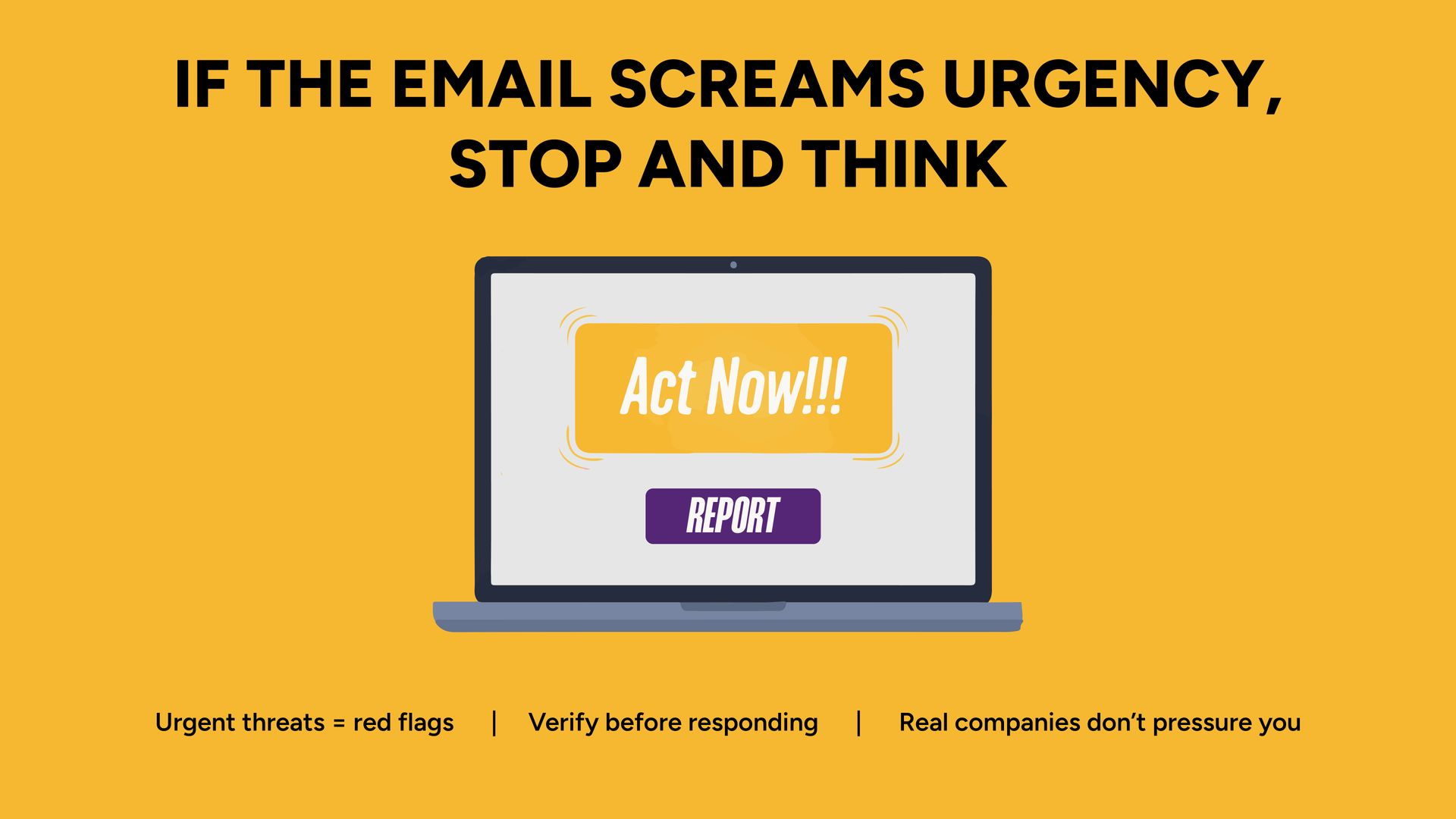
Phishing emails are one of the most common and costly cyber threats facing small businesses in Grand Rapids, Michigan. These attacks are designed to trick employees into revealing passwords, approving fraudulent payments, or clicking malicious links that compromise company systems. For many small businesses, phishing is not a technical failure, it’s a human one. Understanding how these scams work and how to protect your team is one of the most important cybersecurity steps you can take. What Is a Phishing Email? A phishing email is a fraudulent message designed to appear legitimate. It often impersonates: A software provider A coworker or manager A vendor A bank or payment platform A service like Microsoft 365 or Google Workspace The goal is simple: Steal login credentials Redirect payments Install malware Gain access to sensitive company data Modern phishing emails are highly convincing. They often use real logos, accurate formatting, and urgent language that pressures employees to act quickly. Why Small Businesses in West Michigan Are Prime Targets Many small business owners assume hackers only target large corporations. In reality, small businesses are often more attractive targets because: They have fewer security layers Teams operate with high internal trust Financial processes are less segmented Attackers use automated tools that cast wide nets In West Michigan, we frequently see phishing attempts aimed at healthcare offices, schools, nonprofits, professional services, and trade-based businesses. Size does not protect you. Preparation does. What a Phishing Attack Can Cost a Small Business The impact of a successful phishing attack can include: Account takeover Fraudulent wire transfers Payroll diversion scams Data exposure Operational downtime Reputational damage Even a single compromised inbox can expose vendor communications, client data, and financial workflows. The cost is rarely just financial, it’s operational. Why Employee Awareness Is Just as Important as Security Tools Email filtering tools block many threats. But not all of them. Phishing works because it exploits human behavior: urgency, authority, and routine. An employee sees: “Your password expires today.” “Invoice attached.” “Wire transfer needed before 3pm.” They react quickly. That’s what attackers rely on. Technology helps. But your team is the final line of defense. How to Protect Your Team from Phishing Attacks 1. Enforce Multi-Factor Authentication (MFA) MFA prevents stolen passwords from being enough to access accounts. 2. Use Advanced Email Filtering Basic spam filters are no longer sufficient. Modern tools analyze behavior patterns, impersonation attempts, and domain anomalies. 3. Secure Your Email Domain (SPF, DKIM, DMARC) Proper domain configuration helps prevent spoofing and impersonation. 4. Provide Ongoing Security Awareness Training Annual training isn’t enough. Phishing evolves constantly. Employees need regular reminders and real-world examples. 5. Monitor Login Activity Unusual login attempts, impossible travel events, or repeated failed logins should be flagged and investigated quickly. Real Examples of Phishing We’ve Seen Locally Without naming names, we’ve seen: Fake DocuSign emails requesting credential re-entry Payroll change requests appearing to come from company leadership “Microsoft password expired” alerts Vendor invoice impersonation with slightly altered email domains Each one looked legitimate at first glance. How IT Systems, LLC Helps Grand Rapids Businesses Reduce Phishing Risk At IT Systems, LLC, phishing protection is not just about installing software. We help businesses: Configure secure email environments Implement multi-factor authentication Monitor suspicious activity Provide employee awareness guidance Respond quickly when incidents occur Security works best when tools, training, and monitoring work together. Frequently Asked Questions About Phishing Emails How do phishing emails bypass spam filters? Attackers constantly adapt tactics to avoid detection. Some phishing emails use legitimate compromised accounts, which makes them harder to detect. Can small businesses really be targeted? Yes. Many phishing campaigns are automated and target thousands of small businesses at once. Is Microsoft 365 or Google Workspace secure enough by default? Both platforms provide strong security foundations, but proper configuration, MFA, and monitoring are critical for full protection. What should we do if an employee clicks a phishing link? Immediately reset passwords, revoke sessions, review login history, and assess potential data exposure. How often should phishing training happen? At least annually, with periodic reminders and updates throughout the year. Strengthen Your Email Security Phishing emails don’t always look suspicious at first glance. If your business hasn’t reviewed email security or employee awareness in the past year, it may be time to take a closer look. 👉 Talk with our team about strengthening your email security.