

Employees often use personal devices for work before the business has made a decision about it. They add work email to a phone, download a file to a home laptop, or sign into a company app from a computer shared with family. Once business data is stored on a personal device, you have less control over updates, installed apps, backups, and who else uses the device. You also need a way to remove company data when the employee leaves or the device is lost. Personal devices can be allowed, but the business should decide which devices, applications, and types of work are permitted. What BYOD includes Bring your own device, usually shortened to BYOD, means an employee uses a personally owned phone, tablet, or computer for work. That can include: Adding work email to a personal phone Signing into Microsoft 365 or Google Workspace Joining online meetings Opening customer or company files Using a business messaging app Accessing accounting, CRM, or project management software Downloading documents to a personal computer Depending on the application, business information may remain in the cloud or be downloaded to the device as messages, attachments, cached data, or files. What you cannot fully control on a personal device Your IT team can set and monitor security on company-owned devices. With personal devices, employees choose which apps to install, when to update the operating system, who else uses the device, and where files are backed up.
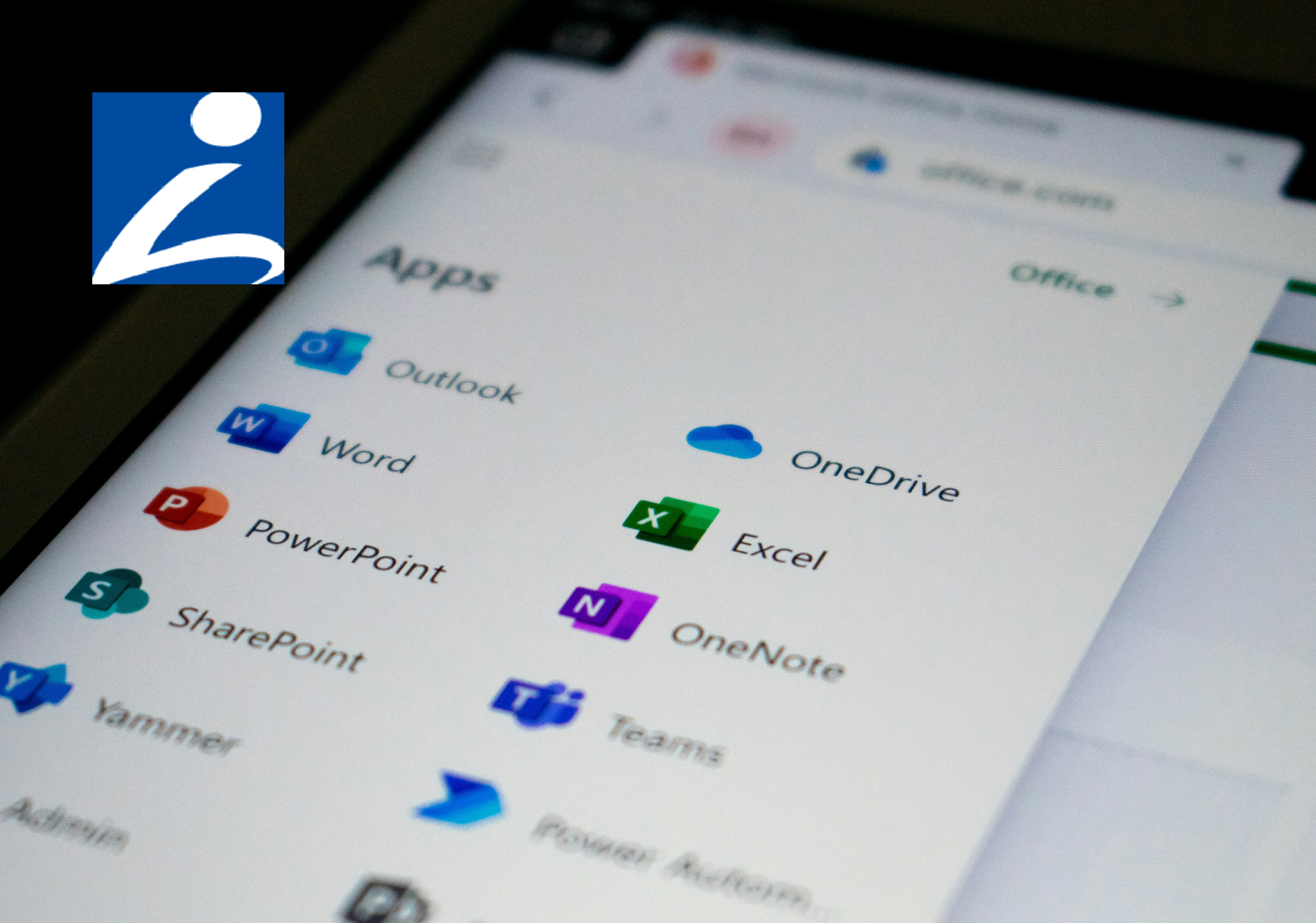
If your business runs on Microsoft 365, you've got two places to store files: OneDrive and SharePoint. Most people are never told the difference, so files end up wherever is easiest, spread across OneDrive, SharePoint, Teams, and the desktop. That's how you end up with the everyday headaches: a file nobody can find, a document only one person can open, and a scramble to recover someone's work after they leave. The rule for where things should go is simple once you know what each one is for. What each one is for OneDrive is your own space. Think of it as the cloud version of the My Documents folder on your computer: your work files, private to you unless you choose to share them. It's the right place for drafts and anything only you need. SharePoint is the team's space. It's built for files with shared ownership, the documents your team, department, or the whole business works on together. Microsoft's own advice is straightforward: if you're working on something by yourself, save it to OneDrive; if you're working as a team, save it where the team works. Where Teams fits in Microsoft Teams confuses this for a lot of people, because it looks like a third place to keep files. In reality, when you upload a file to a Teams channel, it's stored in that team's SharePoint site. The Files tab in Teams is just a view into SharePoint. So if your team works in Teams, your shared files are already in SharePoint, whether you realized it or not. That's a good thing. It means the files have shared ownership and don't belong to one person's account. So where should your files live? Here's the rule that keeps things simple: If it's your own draft or something only you need, keep it in OneDrive. If the team needs it, more than one person works on it, or it's a client or project file, put it in SharePoint (or the Teams channel for that work, which is the same thing). Don't leave important shared files sitting only on someone's desktop or only in their personal OneDrive. Sharing files the right way Where a file lives also changes how you share it. When you share a file from your OneDrive, you're sending people into your personal space, usually with a link tied to your account. That works, but the link depends on you. If you leave, or the file moves, those links can stop working, and whoever relied on them is stuck. In SharePoint or a Teams channel, the right people already have access, because the files belong to the team rather than to you. You can point a colleague to the folder and they're in, with no one-off links to manage. It's also worth sharing a link instead of emailing a copy. When everyone opens the same file in OneDrive or SharePoint, they're all looking at the current version, and you avoid ending up with five slightly different copies attached to five different emails. Why this matters Putting files in the right place saves you real trouble later. Take what happens when someone leaves. Their personal OneDrive isn't shared by default, so any important work kept only there can be hard to reach. Microsoft holds a deleted user's OneDrive for 30 days by default and gives their manager access, but that turns into a rush against the clock. Files kept in SharePoint stay with the team no matter who comes or goes. It also makes files easier to find. When the team's documents live in one shared SharePoint library, people know where to look, instead of hunting through inboxes and personal drives. And it helps you recover from mistakes. Both OneDrive and SharePoint keep older versions of your files and a recycle bin, so if a document gets overwritten or ransomware scrambles your files, you can roll back to a clean copy instead of starting over: How to get it right Put shared work in SharePoint or Teams. Anything the team works on together belongs in a shared library. Keep it out of one person's OneDrive. Keep OneDrive for your own files. Drafts and personal work are fine there. Just don't let it become the only home for something the team needs. Get files off local desktops. A file saved only on a laptop isn't backed up, isn't shared, and is gone if the laptop is lost. Move important files into OneDrive or SharePoint. You can still work from your computer the way you always have: the OneDrive app keeps a copy on the device for offline use and saves your changes to the cloud automatically. Agree where things go. A simple, shared rule, like "client files live in the client's SharePoint folder," saves endless confusion later. Use version history when you need it. If a file gets changed or deleted by mistake, you or your IT provider can restore an earlier version rather than redoing the work. Frequently Asked Questions What's the key difference between OneDrive and SharePoint? OneDrive is for your own work files. SharePoint is for files your team shares. Where do files in a Teams channel get stored? In SharePoint. Every team has a SharePoint site behind it, and the Files tab in a channel is a view into that site. Uploading a file to Teams is the same as putting it in SharePoint. Should I keep work files on my computer's desktop? Try not to, for anything important. A file only on your desktop isn't shared or backed up, and it's gone if the device is lost or breaks. Save it to OneDrive or SharePoint instead, where it's protected and reachable. What happens to files in someone's OneDrive when they leave? By default, Microsoft keeps a deleted user's OneDrive for 30 days and gives their manager access, and that window can be extended if it's set up in advance. It's recoverable, but it's far easier if shared work was in SharePoint to begin with. Can I get back a file that was deleted or changed by mistake? Usually, yes. OneDrive and SharePoint both keep a recycle bin and older versions of files, so you can restore a deleted file or roll back to an earlier version. Your IT provider can help if you can't find it. Article used with permission from The Technology Press.

When you search Google for a program to download or a website to log into, the first thing you see is usually an ad. It sits at the top, marked "Sponsored," and most people click it without a second thought, because the top result is normally what you wanted. Scammers count on that. They buy ads on the names of trusted companies and popular software, so their fake site appears right at the top, above the real one, and you click it thinking it's the official page. How the scam works The trick is called malvertising, short for malicious advertising. A scammer buys a search ad for a term people trust, like the name of your bank, a Microsoft login, or a common program such as a PDF reader or a video player. The ad looks normal, with the real brand name and a web address that looks right. When someone clicks it, they land on a page built to look exactly like the real one. Sometimes that page asks you to log in and hands your username and password straight to the scammer. Other times it offers the software you were after, and the download installs malware instead of the real program. Why these ads are so easy to fall for These ads are convincing. They sit above the real result, so they're the first thing you see. They use the real company's name and a web address that looks right. And they show up on a search you started yourself, so they don't feel as suspicious as a random email or text would. Attackers have also gotten good at hiding from the checks meant to stop them. They show a clean, harmless page to the ad reviewers and the real, malicious page to everyone else, so the ad can pass review and still do damage. How common is this? Very. In its 2025 Ads Safety Report , Google said it blocked or removed more than 8.3 billion ads that broke its rules, suspended 24.9 million advertiser accounts, and took down 602 million ads tied to scams. Google also noted that criminals are now using AI to make fake ads faster. Security researchers have found scam search ads pretending to be well-known programs like VLC, 7-Zip, and CCleaner, and even Google's own apps, with downloads that installed password-stealing malware. These show up on the everyday searches your team runs. What this means for your business For a business, the risk comes up in two everyday situations: downloading software, and logging in. When someone downloads software, they search for a tool, click the top ad, and install something that steals the passwords and logins saved in their browser. When someone logs in, they search for "Microsoft 365 login" or their bank, click the ad rather than the official link, and type their username and password straight into a fake page. In both cases, the problem is info-stealing malware. Once it's on a machine, it can steal saved passwords, browser cookies, and session tokens, which can get an attacker into accounts even when multi-factor authentication is switched on. How to protect your team Scroll past the sponsored results. The ads sit at the top, marked "Sponsored" or "Ad." The real website is usually just below, in the normal results. Don't download software from an ad. Type the maker's web address yourself, or search and use the normal result, then download from the official site. Bookmark the sites you log into. For your bank, Microsoft 365, and other important accounts, use a saved bookmark instead of searching each time. Keep devices and browsers updated. Turn on automatic updates so a bad download is less likely to work. Tell your team this is a thing. Most people have no idea the top result can be a trap and, once they know, they stop clicking it. Frequently Asked Questions Aren't ads at the top of Google checked and safe? Google reviews ads and removes billions that break its rules, but scammers still slip through by showing reviewers a clean page and everyone else the malicious one. A "Sponsored" label doesn't mean the site is safe. What is malvertising? Malvertising is short for malicious advertising: scammers buy online ads, often on trusted brand names, to send people to fake sites that steal logins or install malware.
How do I download software safely?
Go to the maker's official website by typing the address yourself, or search and use the normal (non-ad) result. Don't download from a sponsored ad, and don't trust a download that arrives through one. What should I do if someone clicked a scam ad? If they only visited the page, close it and don't enter anything. If they typed a password, change it and turn on MFA. If they downloaded and ran a file, disconnect the device and have your IT provider check it for info-stealing malware. Does an ad blocker help? It can. A reputable ad blocker hides many sponsored results, which takes the fake links off the page before anyone can click them. It isn't a complete fix, so keep the habits above too. Article used with permission from The Technology Press.Employees often use personal devices for work before the business has made a decision about it. They add work email to a phone, download a file to a home laptop, or sign into a company app from a computer shared with family. Once business data is stored on a personal device, you have less control over updates, installed apps, backups, and who else uses the device. You also need a way to remove company data when the employee leaves or the device is lost. Personal devices can be allowed, but the business should decide which devices, applications, and types of work are permitted. What BYOD includes Bring your own device, usually shortened to BYOD, means an employee uses a personally owned phone, tablet, or computer for work. That can include: Adding work email to a personal phone Signing into Microsoft 365 or Google Workspace Joining online meetings Opening customer or company files Using a business messaging app Accessing accounting, CRM, or project management software Downloading documents to a personal computer Depending on the application, business information may remain in the cloud or be downloaded to the device as messages, attachments, cached data, or files. What you cannot fully control on a personal device Your IT team can set and monitor security on company-owned devices. With personal devices, employees choose which apps to install, when to update the operating system, who else uses the device, and where files are backed up.
If your business runs on Microsoft 365, you've got two places to store files: OneDrive and SharePoint. Most people are never told the difference, so files end up wherever is easiest, spread across OneDrive, SharePoint, Teams, and the desktop. That's how you end up with the everyday headaches: a file nobody can find, a document only one person can open, and a scramble to recover someone's work after they leave. The rule for where things should go is simple once you know what each one is for. What each one is for OneDrive is your own space. Think of it as the cloud version of the My Documents folder on your computer: your work files, private to you unless you choose to share them. It's the right place for drafts and anything only you need. SharePoint is the team's space. It's built for files with shared ownership, the documents your team, department, or the whole business works on together. Microsoft's own advice is straightforward: if you're working on something by yourself, save it to OneDrive; if you're working as a team, save it where the team works. Where Teams fits in Microsoft Teams confuses this for a lot of people, because it looks like a third place to keep files. In reality, when you upload a file to a Teams channel, it's stored in that team's SharePoint site. The Files tab in Teams is just a view into SharePoint. So if your team works in Teams, your shared files are already in SharePoint, whether you realized it or not. That's a good thing. It means the files have shared ownership and don't belong to one person's account. So where should your files live? Here's the rule that keeps things simple: If it's your own draft or something only you need, keep it in OneDrive. If the team needs it, more than one person works on it, or it's a client or project file, put it in SharePoint (or the Teams channel for that work, which is the same thing). Don't leave important shared files sitting only on someone's desktop or only in their personal OneDrive. Sharing files the right way Where a file lives also changes how you share it. When you share a file from your OneDrive, you're sending people into your personal space, usually with a link tied to your account. That works, but the link depends on you. If you leave, or the file moves, those links can stop working, and whoever relied on them is stuck. In SharePoint or a Teams channel, the right people already have access, because the files belong to the team rather than to you. You can point a colleague to the folder and they're in, with no one-off links to manage. It's also worth sharing a link instead of emailing a copy. When everyone opens the same file in OneDrive or SharePoint, they're all looking at the current version, and you avoid ending up with five slightly different copies attached to five different emails. Why this matters Putting files in the right place saves you real trouble later. Take what happens when someone leaves. Their personal OneDrive isn't shared by default, so any important work kept only there can be hard to reach. Microsoft holds a deleted user's OneDrive for 30 days by default and gives their manager access, but that turns into a rush against the clock. Files kept in SharePoint stay with the team no matter who comes or goes. It also makes files easier to find. When the team's documents live in one shared SharePoint library, people know where to look, instead of hunting through inboxes and personal drives. And it helps you recover from mistakes. Both OneDrive and SharePoint keep older versions of your files and a recycle bin, so if a document gets overwritten or ransomware scrambles your files, you can roll back to a clean copy instead of starting over: How to get it right Put shared work in SharePoint or Teams. Anything the team works on together belongs in a shared library. Keep it out of one person's OneDrive. Keep OneDrive for your own files. Drafts and personal work are fine there. Just don't let it become the only home for something the team needs. Get files off local desktops. A file saved only on a laptop isn't backed up, isn't shared, and is gone if the laptop is lost. Move important files into OneDrive or SharePoint. You can still work from your computer the way you always have: the OneDrive app keeps a copy on the device for offline use and saves your changes to the cloud automatically. Agree where things go. A simple, shared rule, like "client files live in the client's SharePoint folder," saves endless confusion later. Use version history when you need it. If a file gets changed or deleted by mistake, you or your IT provider can restore an earlier version rather than redoing the work. Frequently Asked Questions What's the key difference between OneDrive and SharePoint? OneDrive is for your own work files. SharePoint is for files your team shares. Where do files in a Teams channel get stored? In SharePoint. Every team has a SharePoint site behind it, and the Files tab in a channel is a view into that site. Uploading a file to Teams is the same as putting it in SharePoint. Should I keep work files on my computer's desktop? Try not to, for anything important. A file only on your desktop isn't shared or backed up, and it's gone if the device is lost or breaks. Save it to OneDrive or SharePoint instead, where it's protected and reachable. What happens to files in someone's OneDrive when they leave? By default, Microsoft keeps a deleted user's OneDrive for 30 days and gives their manager access, and that window can be extended if it's set up in advance. It's recoverable, but it's far easier if shared work was in SharePoint to begin with. Can I get back a file that was deleted or changed by mistake? Usually, yes. OneDrive and SharePoint both keep a recycle bin and older versions of files, so you can restore a deleted file or roll back to an earlier version. Your IT provider can help if you can't find it. Article used with permission from The Technology Press.
When you search Google for a program to download or a website to log into, the first thing you see is usually an ad. It sits at the top, marked "Sponsored," and most people click it without a second thought, because the top result is normally what you wanted. Scammers count on that. They buy ads on the names of trusted companies and popular software, so their fake site appears right at the top, above the real one, and you click it thinking it's the official page. How the scam works The trick is called malvertising, short for malicious advertising. A scammer buys a search ad for a term people trust, like the name of your bank, a Microsoft login, or a common program such as a PDF reader or a video player. The ad looks normal, with the real brand name and a web address that looks right. When someone clicks it, they land on a page built to look exactly like the real one. Sometimes that page asks you to log in and hands your username and password straight to the scammer. Other times it offers the software you were after, and the download installs malware instead of the real program. Why these ads are so easy to fall for These ads are convincing. They sit above the real result, so they're the first thing you see. They use the real company's name and a web address that looks right. And they show up on a search you started yourself, so they don't feel as suspicious as a random email or text would. Attackers have also gotten good at hiding from the checks meant to stop them. They show a clean, harmless page to the ad reviewers and the real, malicious page to everyone else, so the ad can pass review and still do damage. How common is this? Very. In its 2025 Ads Safety Report , Google said it blocked or removed more than 8.3 billion ads that broke its rules, suspended 24.9 million advertiser accounts, and took down 602 million ads tied to scams. Google also noted that criminals are now using AI to make fake ads faster. Security researchers have found scam search ads pretending to be well-known programs like VLC, 7-Zip, and CCleaner, and even Google's own apps, with downloads that installed password-stealing malware. These show up on the everyday searches your team runs. What this means for your business For a business, the risk comes up in two everyday situations: downloading software, and logging in. When someone downloads software, they search for a tool, click the top ad, and install something that steals the passwords and logins saved in their browser. When someone logs in, they search for "Microsoft 365 login" or their bank, click the ad rather than the official link, and type their username and password straight into a fake page. In both cases, the problem is info-stealing malware. Once it's on a machine, it can steal saved passwords, browser cookies, and session tokens, which can get an attacker into accounts even when multi-factor authentication is switched on. How to protect your team Scroll past the sponsored results. The ads sit at the top, marked "Sponsored" or "Ad." The real website is usually just below, in the normal results. Don't download software from an ad. Type the maker's web address yourself, or search and use the normal result, then download from the official site. Bookmark the sites you log into. For your bank, Microsoft 365, and other important accounts, use a saved bookmark instead of searching each time. Keep devices and browsers updated. Turn on automatic updates so a bad download is less likely to work. Tell your team this is a thing. Most people have no idea the top result can be a trap and, once they know, they stop clicking it. Frequently Asked Questions Aren't ads at the top of Google checked and safe? Google reviews ads and removes billions that break its rules, but scammers still slip through by showing reviewers a clean page and everyone else the malicious one. A "Sponsored" label doesn't mean the site is safe. What is malvertising? Malvertising is short for malicious advertising: scammers buy online ads, often on trusted brand names, to send people to fake sites that steal logins or install malware.